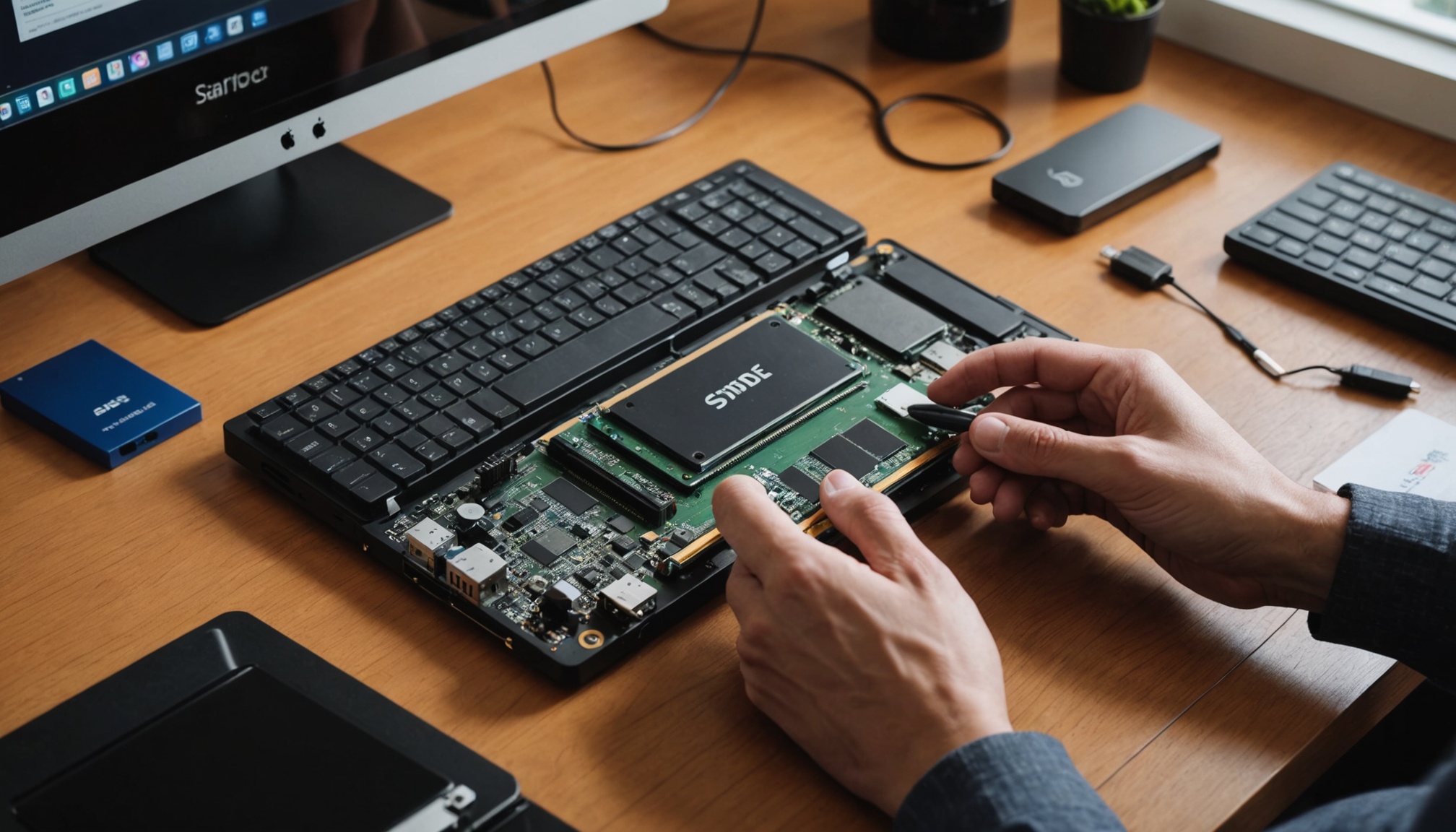
Based on published specs, the sequential-speed ceiling for SATA SSDs is around 550 MB/s, while NVMe SSDs reach approximately 3,500 MB/s on PCIe 3.0 and roughly 7,500 MB/s on PCIe 4.0. That is a more-than-10x gap on paper, yet for booting and document work most of this difference disappears. Two questions decide SSD selection: in which tasks does the difference actually materialize, and what spec should you check before you even look at speed figures?

NVMe vs. SATA — What's Different; M.2 Is Not an Interface
As ITWorld explains, SATA and NVMe are the interfaces (transfer protocols) by which a storage device exchanges data with the system, while M.2 is the form factor — the physical shape of the slot. Both NVMe M.2 and SATA M.2 sticks exist on the market, so a drive with the same M.2 stick shape but a SATA interface is capped at the same 550 MB/s ceiling as a 2.5-inch SATA SSD. This is why checking whether the "interface" line in the spec table says PCIe (NVMe) or SATA matters more than capacity or speed.
For laptop or mini-PC upgrades, the reverse check is equally important. Even with an M.2 slot, different devices support NVMe only, SATA only, or both — buying without confirming the supported spec in the manufacturer's manual can result in a combination the device cannot even recognize.
| Type | SATA SSD | NVMe PCIe 3.0 | NVMe PCIe 4.0 |
|---|---|---|---|
| Sequential speed ceiling (MB/s, published spec) | ~550 | ~3,500 | ~7,500 |
| Form factor | 2.5-inch / M.2 | M.2 | M.2 |
| Connection | SATA port + cable | M.2 slot (PCIe lanes) | M.2 slot (PCIe 4.0 board required) |

10x Faster — Why You Don't Feel It During Boot
Sequential speed is the maximum figure when reading and writing a large file in a continuous stream. Booting and launching apps involve random access to thousands of small scattered files mixed with CPU initialization, so the segment where interface bandwidth actually becomes the bottleneck is short. By contrast, in tasks where bandwidth is directly exposed — installing a game, copying raw video footage, doing a full backup — the difference opens up in minutes. Calculating the theoretical time to move 100 GB at each drive's maximum sequential speed (using 1 GB = 1,000 MB):
| Interface | Max sequential speed (MB/s) | Theoretical time for 100 GB |
|---|---|---|
| SATA | 550 | ~3 min 2 sec |
| NVMe PCIe 3.0 | 3,500 | ~29 sec |
| NVMe PCIe 4.0 | 7,500 | ~13 sec |
Real-world figures will be slower than this calculation. Speed drops in steps when the write cache is exhausted, and thermal throttling from the M.2 stick's characteristic heat also piles on. Even so, the order does not reverse — the more frequent large-volume transfers are, the more directly the interface difference translates into time, while for web browsing and document work any row in the table feels the same. One more point: the table's times assume both the read and write sides are the same tier. Copying files from an old SATA SSD to a new NVMe means the slower 550 MB/s is the ceiling. The most common reason a post-upgrade copy speed disappoints expectations.
The sequential speed printed largest on the spec sheet is the number you encounter least often in real use.

What to Check Before Speed — DRAM Cache
Digital Post (PC Sarang) notes that DRAM-less budget SSDs "can suffer speed degradation after writing a certain amount of data, and carry risks such as sudden system freezes (known as freezing)." Even within the same PCIe 4.0 generation, the presence or absence of DRAM determines the stability of sustained writes and random performance — so this item can affect real-world satisfaction more than the interface generation itself.
The same outlet's use-case guidelines are also worth consulting. SATA or PCIe 3.0 is sufficient for office and home use; for gaming, NVMe with 3,000 MB/s or above is recommended in preparation for DirectStorage-supporting games; and professional work such as broadcast and video editing calls for PCIe 4.0-class speed and large capacity. Layering on the spec-sheet warranty items — TBW (Total Bytes Written) and warranty period — generally settles the ranking among products at the same price point.
If choosing PCIe 4.0 or above, thermal management is also part of the spec. A thin M.2 stick heats up quickly under sustained writes, and exceeding the thermal threshold triggers throttling that forcibly reduces speed. Checking whether the motherboard has a built-in heatsink, whether the product includes one, or whether there is adequate cooling clearance at the drive bay in a laptop — these checks matter more for sustained-use performance than a single sequential-speed figure.

Who It's Right For
- SATA is enough — Upgrading an older PC or laptop with no M.2 slot, or office work centered on documents and the web. Bandwidth bottlenecks are rare
- PCIe 3.0 NVMe — The baseline choice for a new budget desktop build. Part-by-part budget allocation is covered in How to Budget a ₩1M Desktop Build
- PCIe 4.0 + DRAM — Users who frequently install and patch games or work with raw video footage. Large-transfer time is work time
- Can wait — Office-use PC owners currently satisfied with boot and app-launch speed on a SATA SSD. Upgrading the interface without a use case that exercises it changes nothing perceptible